How to Vote on Solana Governance (2026)
By @jasper9 and @CodyValigator. Originally published on X.
The first SGP voting window opens at the start of epoch 1021. If you're a validator or staker wondering what you actually need to do, this is the practical version: what to install, what information you need, and example syntax for casting your vote.
FIRST THING YOU NEED TO KNOW: Validators cast the primary governance vote. Stakers can override how their individual stake is allocated.
By default, a validator votes on behalf of the stake delegated to it. If you're a staker and disagree with your validator's choice, you can override that allocation for any individual stake account you control.
You don't have to wait for your validator to vote first.
- Path A: Validator has already voted. Your override immediately removes your stake from the validator's allocation and applies it to your own For / Against / Abstain preference.
- Path B: Validator hasn't voted yet. Your preference is stored in a
VoteOverrideCache. When the validator eventually casts its vote, your cached override is automatically applied.
So the validator's vote is the starting point, but individual stakers retain control over how their own stake participates.
Source: Solana Governance GitHub documentation.
While writing this, we realized the tooling may still have a few rough edges. We'll update this article after the voting window opens with any corrections we find.
Hey, it's new. Stuff breaks. That's life.
How do we vote?#
You have two options: use the web dashboard or vote directly with the svmgov CLI.
If connecting a wallet and clicking a few buttons sounds better than living in your terminal, the dashboard is probably the path for you. If you want the command line, we've got that covered too.
Option 1: Vote from the dashboard#
Head to the Solana Governance dashboard and connect the wallet associated with your validator or stake account.
The screenshots below show the staker flow. One nice thing about the dashboard is that it handles most of the account discovery for you, so you don't need to manually track down stake account and validator vote account addresses before getting started.
Find the stake account you want to vote with#
Once connected, the dashboard shows the stake accounts associated with your wallet, how much is delegated, and the validator vote account each one is delegated to.
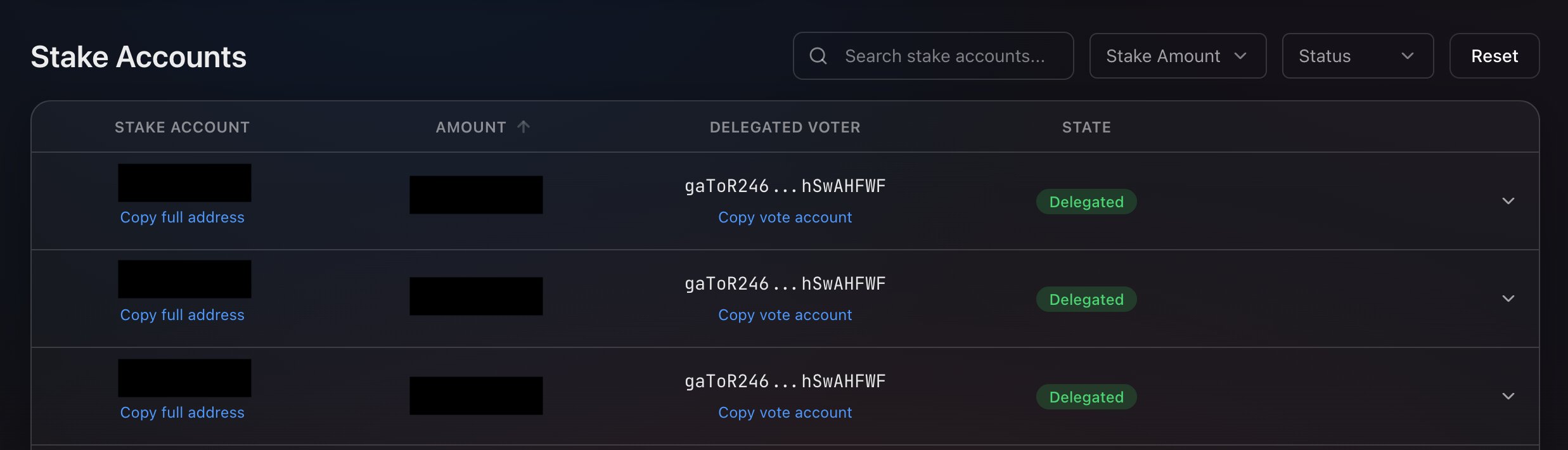
The dashboard lists each stake account alongside the validator vote account it is delegated to.
If you have staked multiple times, remember that governance overrides happen per stake account. You'll select the specific account you want to vote with in the next step.
Choose Cast Vote#
Scroll to Governance Actions and select Cast Vote.
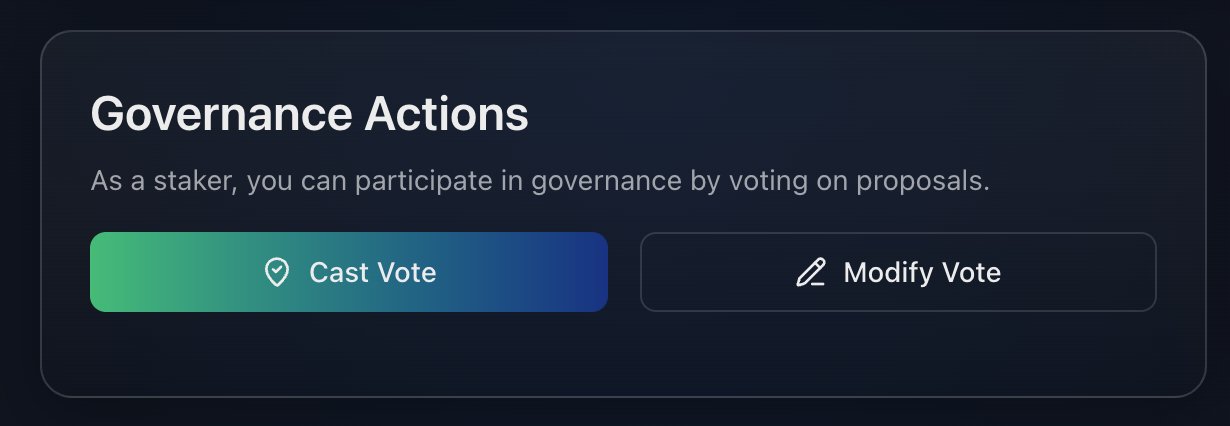
Choose Cast Vote to submit a new governance preference. The dashboard also provides a Modify Vote option for changing an existing vote.
Choose your proposal and decide how you want to vote#
Select the proposal, then choose the stake account you want to vote with.
You will notice that the dashboard labels the vote path Stake override. That's exactly what we talked about earlier: you're overriding how your validator's vote applies to this specific stake account.
From there, you can choose a quick 100% For, 100% Against, or 100% Abstain vote, or move the sliders to split your vote between the three. Your total allocation must equal 100%.
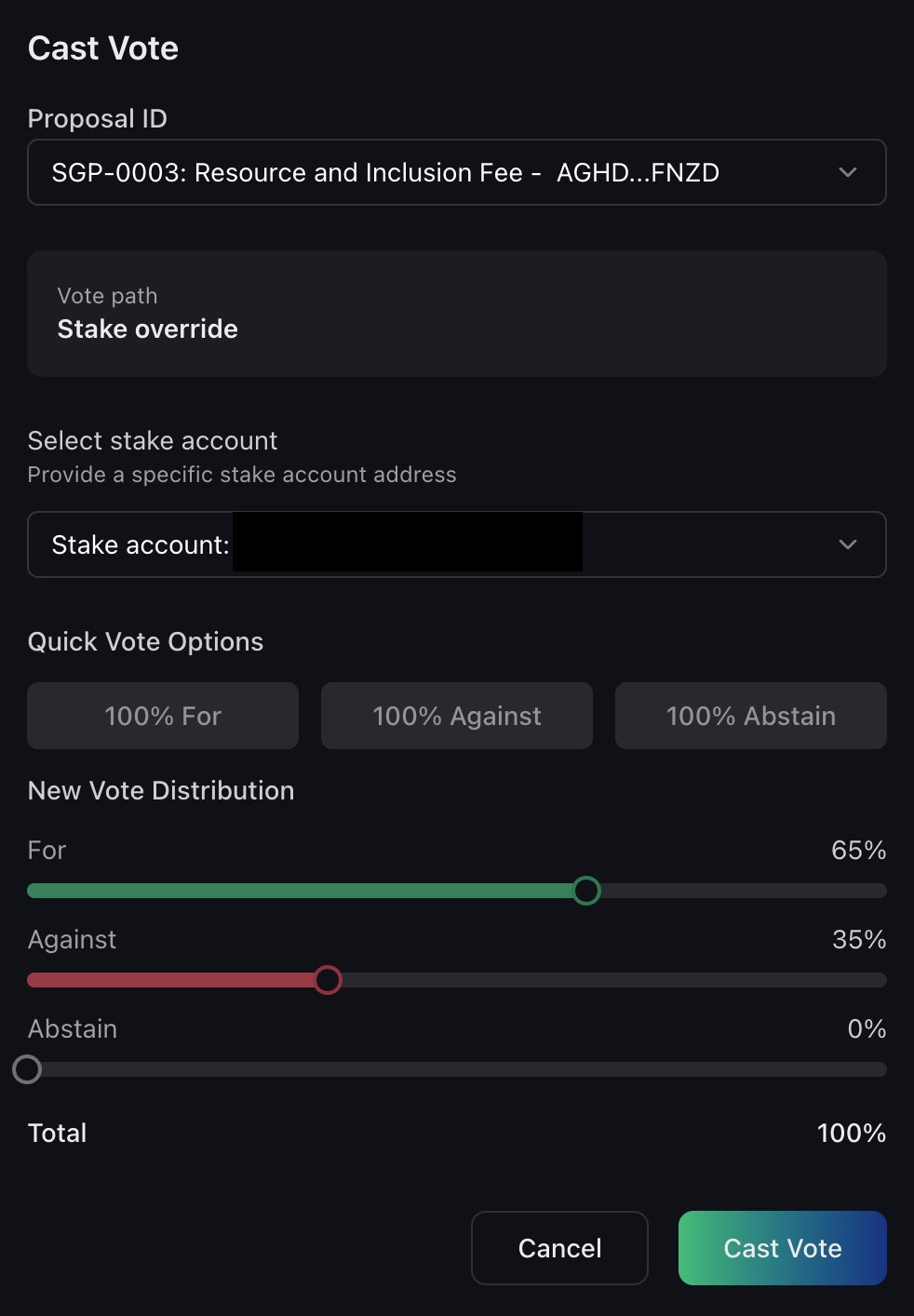
Select the proposal and stake account, then use the sliders to distribute your vote between For, Against, and Abstain.
If you're following along with the CLI examples below, it's the same thing with different units. The dashboard uses percentages, while svmgov uses basis points. For example:
65% For / 35% Against / 0% Abstain
is equivalent to:
6,500 bp For / 3,500 bp Against / 0 bp Abstain
Once everything looks right, select Cast Vote, give the transaction one last look, and sign it with your wallet.
Using a Ledger or Keystone? At the time of writing,
svmgovdoes not appear to support hardware-wallet signing in the same way the Solana CLI does. If your signing authority is held on a Ledger or Keystone, the dashboard is the safer path rather than moving or exporting your keys.
Option 2: Vote with svmgov CLI#
If you'd rather work directly from the terminal, both validators and stakers use the same svmgov CLI. Install it once, then choose your role during setup.
First, grab the official svmgov CLI by cloning the repo:
git clone https://github.com/solana-foundation/solana-governance.git
cd solana-governance

cd svmgov/cli
./install.sh
Then initialize your configuration:
svmgov initThe setup wizard will ask whether you're a Validator or Staker, then walk you through the relevant defaults for your keypair, RPC endpoint, and network.
You'll also need the proposal ID for whatever you're voting on, which you can find here.
Who Am I in This Process?#
The distinction is pretty simple:
- Validator: You're casting the primary stake-weighted governance vote using
svmgov cast-vote. - Staker: You're choosing whether to follow your validator's vote or override it for one or more stake accounts using
svmgov cast-vote-override.
If you're just staking SOL with a validator, the second half of this guide is the part you're looking for.
I'm lazy, what are the proposal IDs?#
Fair. Copy these rather than typing them by hand, and verify them against the governance dashboard before signing.
Want to verify them yourself? svmgov can pull the active proposals directly on-chain:
svmgov list-proposals --status active

Found 3 proposal(s):

╭──────────────────────────────────────────────┬──────────────────────────────────────┬──────────╮
│ ID                                           ┆ Title                                ┆ Status   │
╞══════════════════════════════════════════════╪══════════════════════════════════════╪══════════╡
│ 4aFA8K65zYZjmx16qaXhMLW9QY7URRvwyk4KQo2zLz8k ┆ SGP-0001: The Solana Constitution    ┆ Snapshot │
├──────────────────────────────────────────────┼──────────────────────────────────────┼──────────┤
│ 7QJD8MzheHWJLHS39NkoAbFCGFKg5d9QbVviRqD4YExP ┆ Double Disinflation                  ┆ Snapshot │
├──────────────────────────────────────────────┼──────────────────────────────────────┼──────────┤
│ AGHDQ6gjRFJPoyEcHuc4X7sbxJwyJfeKTb3UrGFzFNZD ┆ SGP-0003: Resource and Inclusion Fee ┆ Snapshot │
╰──────────────────────────────────────────────┴──────────────────────────────────────┴──────────╯
How does a validator vote?#
If you're operating a validator, initialize your configuration first:
svmgov initThe CLI resolves configuration in this order:
Explicit flags → environment variables → config file → built-in defaults
That means RPC address, validator identity keypair, and network can be configured once rather than repeated on every command.
Validator votes are expressed in basis points, or bp. 10,000 bp = 100%. Your For, Against, and Abstain allocations must always add up to exactly 10,000.
Vote 100% For
svmgov cast-vote \
  --proposal-id <PROPOSAL_ID> \
  --for-votes 10000 \
  --against-votes 0 \
  --abstain-votes 0 \
  --network mainnet
Split the Vote
svmgov cast-vote \
  --proposal-id <PROPOSAL_ID> \
  --for-votes 6000 \
  --against-votes 3000 \
  --abstain-votes 1000 \
  --network mainnet
That's 60% For, 30% Against, and 10% Abstain.
Vote 100% Against
svmgov cast-vote \
  --proposal-id <PROPOSAL_ID> \
  --for-votes 0 \
  --against-votes 10000 \
  --abstain-votes 0 \
  --network mainnet
Abstain
svmgov cast-vote \
  --proposal-id <PROPOSAL_ID> \
  --for-votes 0 \
  --against-votes 0 \
  --abstain-votes 10000 \
  --network mainnet
Abstaining still contributes your stake toward quorum, but not toward either the For or Against position.
One important detail for validators: if stakers have already submitted overrides, their stake is automatically removed from your effective voting allocation when your vote is cast. You don't need to calculate that yourself.
How does a staker vote?#
This is where things get a little more interesting.
A staker isn't really casting an entirely separate vote from scratch. You're overriding the portion of your validator's governance vote represented by your specific stake account.
To do that, you'll need:
- Your stake account address
- The withdraw-authority keypair for that stake account
- Your validator's vote account address
- The proposal ID
- Access to a Solana RPC endpoint
One Important Catch: Overrides Are Per Stake Account#
If you staked five separate times to the same validator, you may have five separate stake accounts. Each stake account can submit its own override. So if you want all five accounts to vote differently from your validator, you'll need to run the process for each one.
You could also use our Holdfast stake manager to consolidate multiple stake accounts into one. Request beta access here.
Where Do I Find the Validator's Vote Account?#
First, you need the vote account for the validator you're delegated to. This is different from the validator's identity address. Search for your validator on Stakewiz and copy the address labeled Vote Account:
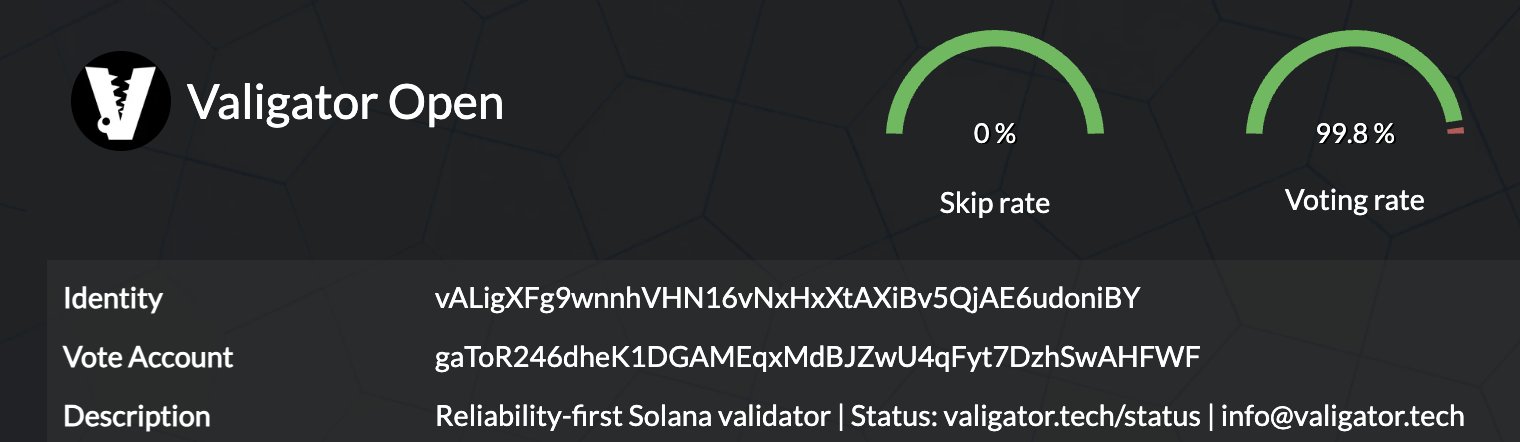
Example of a validator found on Stakewiz.
Where Do I Find My Stake Account?#
Next, you need the address of the specific stake account whose vote you want to override. Search for your wallet on Solscan, open the Stake Accounts tab, and copy the appropriate stake account address:
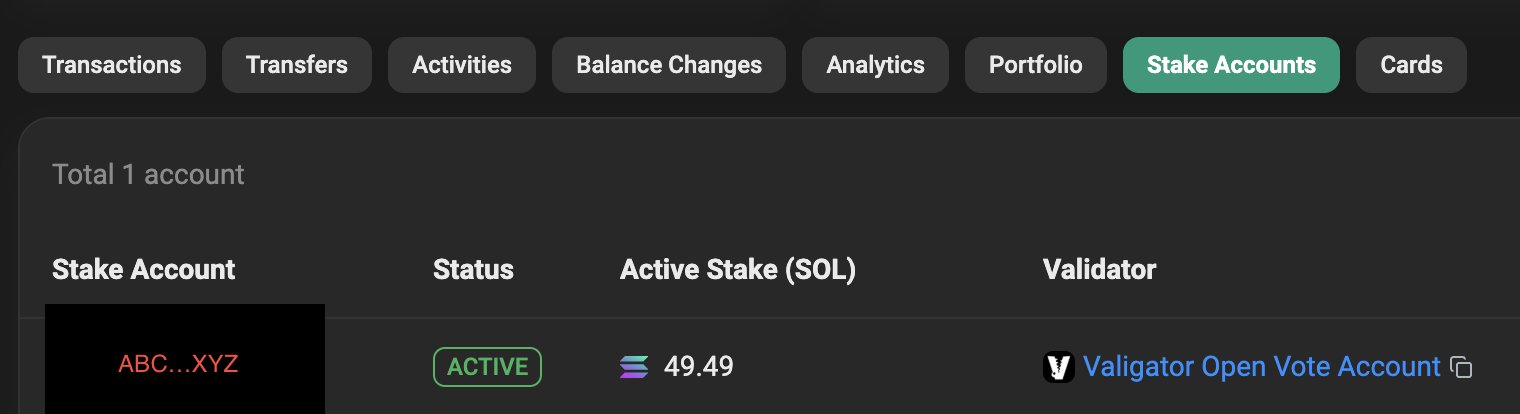
Find a stake account on Solscan.
How Does a Staker Actually Vote?#
Remember the underlying concept: you're overriding the validator's vote for your individual stake account.
- If the validator has already voted, your override is applied immediately.
- If the validator hasn't voted yet, you can still submit your preference. It will be cached and automatically applied when the validator casts their vote.
Override the Validator and Vote 100% For
svmgov cast-vote-override \
  --proposal-id <PROPOSAL_ID> \
  --stake-account <STAKE_ACCOUNT_ADDRESS> \
  --staker-keypair <PATH_TO_WITHDRAW_AUTHORITY_KEYPAIR> \
  --vote-account <VALIDATOR_VOTE_ACCOUNT> \
  --for-votes 10000 \
  --against-votes 0 \
  --abstain-votes 0 \
  --network mainnet
Split Your Override
svmgov cast-vote-override \
  --proposal-id <PROPOSAL_ID> \
  --stake-account <STAKE_ACCOUNT_ADDRESS> \
  --staker-keypair <PATH_TO_WITHDRAW_AUTHORITY_KEYPAIR> \
  --vote-account <VALIDATOR_VOTE_ACCOUNT> \
  --for-votes 6000 \
  --against-votes 3000 \
  --abstain-votes 1000 \
  --network mainnet
Just like validator voting, the three allocations must add up to exactly 10,000 basis points.
Before You Sign#
Check everything one more time:
- Proposal ID
- Network
- Stake account
- Validator vote account
- Voting allocation
- Wallet or keypair being used to sign
Governance is exciting. Accidentally governing the wrong thing is somewhat less exciting.